
Your kids want to play Minecraft with their friends online, but you may have heard the horror stories about public servers. Inappropriate chat, griefing, and strangers who shouldn’t be anywhere near your children. The good news? You can create a private, controlled space where your kids play safely with only the people you approve. This guide walks you through every option, from the simplest setup to more customizable solutions.
Why a Private Server Beats Public Ones Every Time
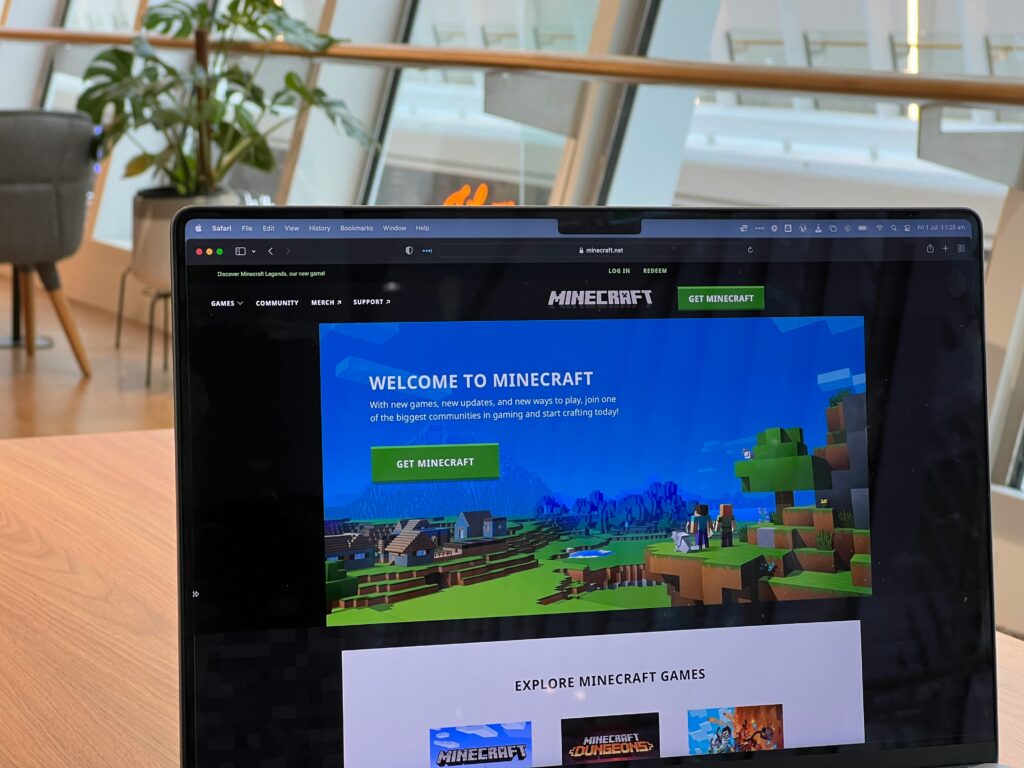
Public Minecraft servers are a mixed bag. Some are well moderated, but many are not. Your child could encounter offensive language, cyberbullying, or adults pretending to be kids.
A private server flips the script entirely. You control who joins. You set the rules. You decide whether chat is even enabled. It’s basically a gated playground where only invited friends can enter.
Plus, there’s an educational bonus here. Kids learn about digital ownership, server management, and online responsibility when they’re involved in running their own space.
Bedrock vs Java: Which Version Do You Need?
Before setting anything up, you need to know which Minecraft edition your kids use. This matters more than you might think.
| Feature | Bedrock Edition | Java Edition |
| Platforms | Consoles, mobile, Windows 10/11 | PC only |
| Cross-play | Yes, across all Bedrock devices | No |
| Best for | Younger players, mixed device households | Older kids wanting mods |
| Mod support | Limited (add-ons only) | Extensive |
Check what devices your children and their friends use. That determines your path forward.
Your Three Main Hosting Options
Setting up a Minecraft server isn’t one-size-fits-all. Here’s a breakdown of what actually works for families.
Option 1: Minecraft Realms (Easiest)
Realms is Mojang’s official hosting service, designed for people who don’t want technical headaches. You set it up directly inside Minecraft – no external software, no IP addresses to share.
Pricing runs about $3.99/month for Bedrock (you plus 2 players) or $7.99/month for the full version (you plus 10 players). Java Edition Realms costs $7.99/month for up to 10 players.
The biggest advantage? Simplicity. Your kids’ friends join by accepting an invite through their Microsoft account. The downside is limited customization with no mods, no plugins, and a 10 players cap.
Option 2: Third-Party Server Hosting (Best Balance)
Running your own server is not the only option. If you want more control without running hardware yourself, server hosting through a third-party provider hits the sweet spot. You get dedicated resources, mod support, and better performance than Realms, often at comparable prices.
Most hosting plans start around $3-10/month for small servers supporting 10-20 players. You’ll get a control panel to manage settings, install plugins, and configure backups.
Option 3: Self-Hosting on Your Computer (Most Control)
Running a server on your home PC costs nothing beyond electricity, but it comes with trade-offs. Your computer needs to stay on whenever kids want to play, and you’ll need to configure router port forwarding. A fast and stable internet connection is critical, or players will experience lag. This option requires more technical effort.
Quick comparison of all three options:
- Realms – Zero technical skill needed, limited features, $4-8/month
- Third-party hosting – Moderate setup, full mod support, $3-15/month
- Self-hosting – Technical knowledge required, maximum control, free
Setting Up Safety Features That Actually Work
Getting the server running is only half the battle. Here’s how to lock it down properly.
Enable the Whitelist
A whitelist means only approved usernames can join. This is your first and most important line of defense. According to the Minecraft Wiki’s server setup tutorial, configuring the whitelist through your server properties file is straightforward and essential for private servers. It helps keep unwanted players out.
Configure Chat Settings
Many parents look for ways to keep their kids safe online. Microsoft accounts have built-in parental controls that apply to Minecraft. Through Xbox Family Settings (even on non-Xbox devices), you can:
- Disable chat entirely for young children
- Restrict chat to friends only
- Enable full communication for teens with monitoring
- Block friend requests from strangers
- Control who can invite your child to games
Set Up Operator Permissions
Decide who can use admin commands. Keep operator status for yourself and maybe one trusted older child. This prevents anyone from spawning items or kicking players without permission.
Age-Based Recommendations
Not every setup works for every age group. Here’s a quick framework.
| Age Group | Recommended Setup | Chat Settings | Supervision Level |
| 6-9 years | Realms or hosted server | Disabled | Regular check-ins |
| 10-12 years | Any option | Friends only | Occasional monitoring |
| 13+ years | Any option | Open with guidelines | Trust-based |
Common Setup Mistakes to Avoid
A few pitfalls trip up parents regularly.
Sharing the server IP publicly – Never post your server address on social media or public forums. Share it only through private messages to known families.
Forgetting backups – Kids build incredible things. Servers crash. Make sure automatic backups are enabled so months of work don’t vanish.
Ignoring updates – Minecraft updates frequently. Server software needs to match the game version your kids are running, or they won’t be able to connect.
Keeping Kids Engaged Long-Term
Once your server is running, the real fun begins. A private Minecraft world gives kids a creative outlet that keeps them engaged for hours, similar to having structured activities during rainy days family cabin trip. Try themed building challenges, survival competitions, or collaborative projects to keep things fresh.
Frequently Asked Questions
How much does a Minecraft server cost per month?
Minecraft Realms runs $3.99-$7.99 monthly, depending on your edition and player count. Third-party hosting typically costs $3-15/month for family-sized servers. Self-hosting is free but requires your own hardware.
Can my kids play together if one uses an Xbox and another uses a PC?
Yes, but only if both use Bedrock Edition. Java Edition is PC-exclusive and doesn’t support cross-platform play.
Is Minecraft safe for kids to play online?
With proper configuration, absolutely. Private servers with whitelists, restricted chat, and parental oversight create a controlled environment. The risks come from unmoderated public servers, not the game itself.
Do I need technical skills to set up a server?
Realms requires zero technical knowledge. Third-party hosting needs basic comfort with web interfaces. Self-hosting demands more hands-on configuration.
How many players can join a private server?
Realms caps at 10 simultaneous players. Hosted servers scale based on your plan – anywhere from 10 to hundreds of players.
Key Takeaways
- Private servers give you complete control over who plays with your kids and what features are enabled
- Bedrock Edition works across consoles, mobile, and PC; Java Edition is PC-only
- Minecraft Realms offers the easiest setup, but limited customization
- Third-party hosting balances ease-of-use with flexibility for mods and larger groups
- Always enable whitelisting and configure chat based on your child’s age
- Keep backups enabled and server software updated